TABLE OF CONTENTS
- Add a ‘Ship From’ Location
- Enable ‘Package’ for All Active Carriers
- Match Platform and ShipStation Account Currencies
Follow these steps to ensure your ShipStation account is properly configured for integration.
1. Add a ‘Ship From’ Location
Log in to your ShipStation account.
Go to Settings (gear icon) > Shipping > Ship From Locations.
Click Add a Ship From Location.
Fill out the required details and save.
Make sure at least one location is listed as active.


2. Enable ‘Package’ for All Active Carriers
In Settings, go to Shipping > Packages.
Review the list of packages and ensure the ‘Package’ option is enabled for all active carriers you plan to use.
Save changes.

3. Match Platform and ShipStation Account Currencies
Go to Settings > Account > Your Account.
Check your Account Currency.
Confirm that this currency matches your platform’s currency settings (the platform you’re integrating with ShipStation).
Update as needed to avoid mismatches during checkout and shipping calculations.
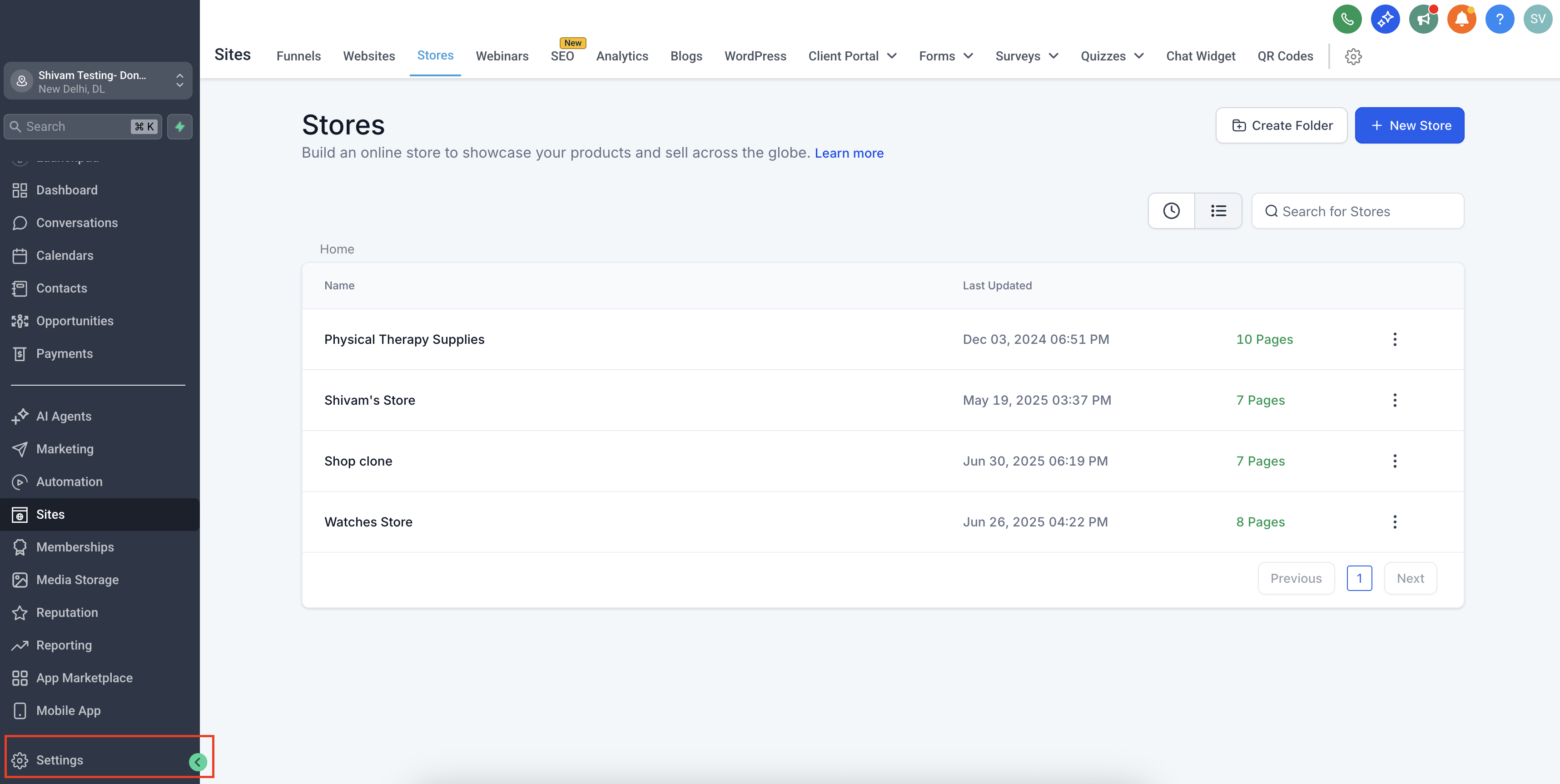
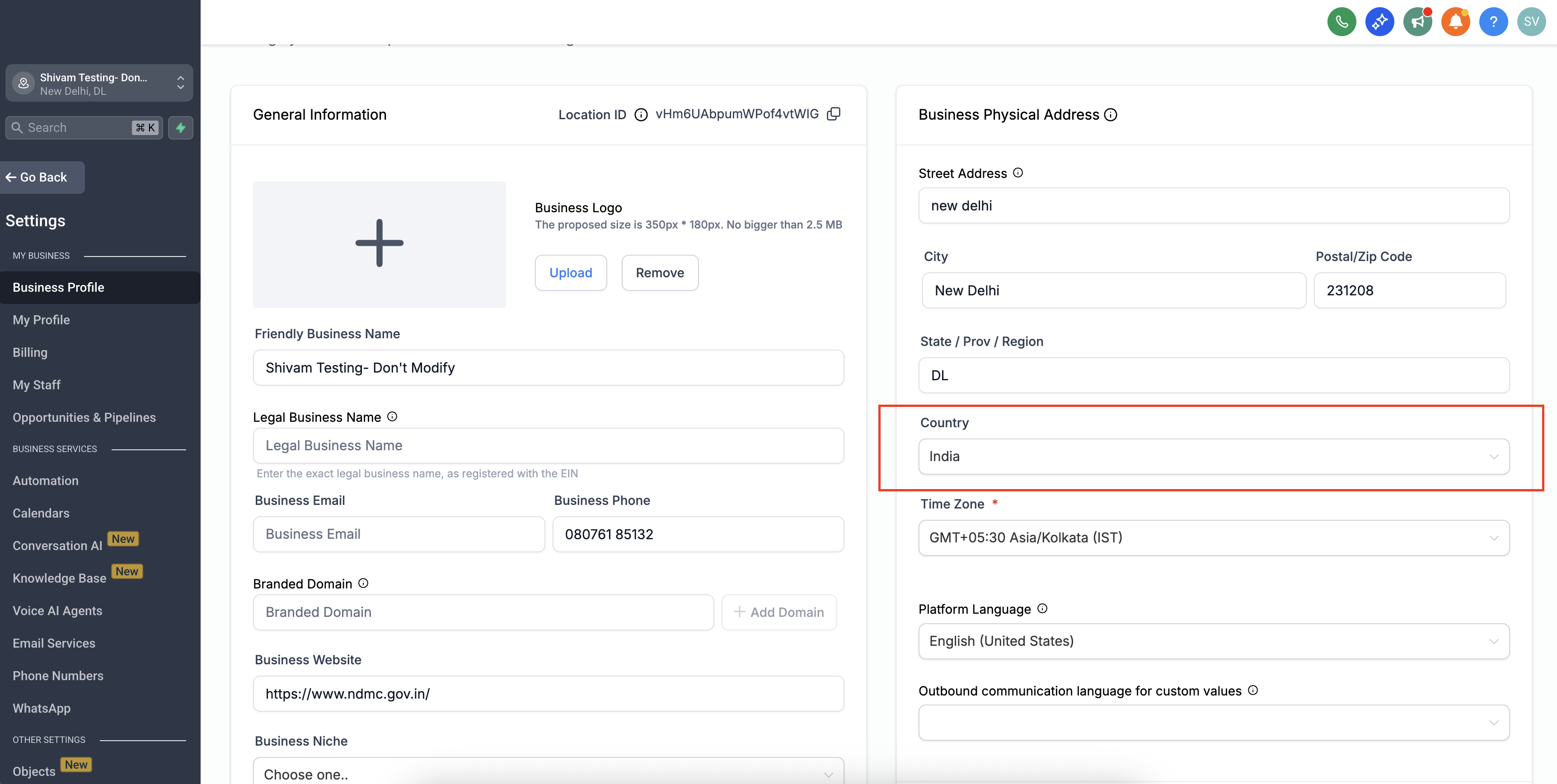
3.1. Configuring in the platform:
Go to Settings > Business Profile > Business Physical Address > Select Country
** Based on the selected country - currency will be accordingly set
3.2. Configuring in the Shipstation:
Account currency is set based on the Home country location. Check supporting articles:
- https://help.shipstation.com/hc/en-us/articles/360045434792-How-does-currency-work-in-ShipStation#UUID-3ff60925-4929-7a36-0118-3cc78fa60d79_UUID-07d0d250-e31e-5115-1a5a-3dd6a59eb762
- https://www.chargebee.com/docs/billing/2.0/integrations/shipstation#sync-prerequisites-for-new-orders
Was this article helpful?
That’s Great!
Thank you for your feedback
Sorry! We couldn't be helpful
Thank you for your feedback
Feedback sent
We appreciate your effort and will try to fix the article