
Regular email campaigns let you send one-time broadcasts to targeted contacts without automation. You can send a campaign immediately or schedule it for a future date and time.
Before delivery, you can configure campaign details such as sender information, recipients, tracking settings, and optional file attachments. This guide explains how to prepare, send, or schedule a regular email campaign.
What Is Sending or Scheduling an Email Campaign?
Regular email campaigns are one-time broadcast emails you design and send to a selected audience from the Email Marketing area. They are useful for time-sensitive announcements, promotions, newsletters, and other messages that do not require workflow automation.
After designing the email, you can configure delivery details and either send the campaign immediately or schedule it for a future date and time.
Note: Before sending an email campaign, make sure you have a verified sending domain configured for email.
Email Attachments for Campaigns
Email attachments let you deliver supporting files alongside your campaign instead of requiring recipients to open an external file-sharing link.
Attachments are added during the Send or Schedule process after the email content has been designed.
- Multiple Attachments: You can add more than one file to an email campaign.
- Combined Size Limit: The total size of all campaign attachments must not exceed 10 MB.
- Email Delivery: Recipients receive the files as attachments through their email client.
- Email Body Preview: Attachments do not appear inside the designed email body.
Important: The 10 MB combined limit applies to attachments added through the email campaign workflow. Attachment restrictions in other areas can be different.
If a file is too large to include within the campaign attachment limit, consider hosting the file externally and adding a link to it in the email instead.
How to Send or Schedule an Email Campaign
Proper campaign setup helps reduce errors and ensures the correct content, recipients, delivery settings, and optional attachments are configured before sending.
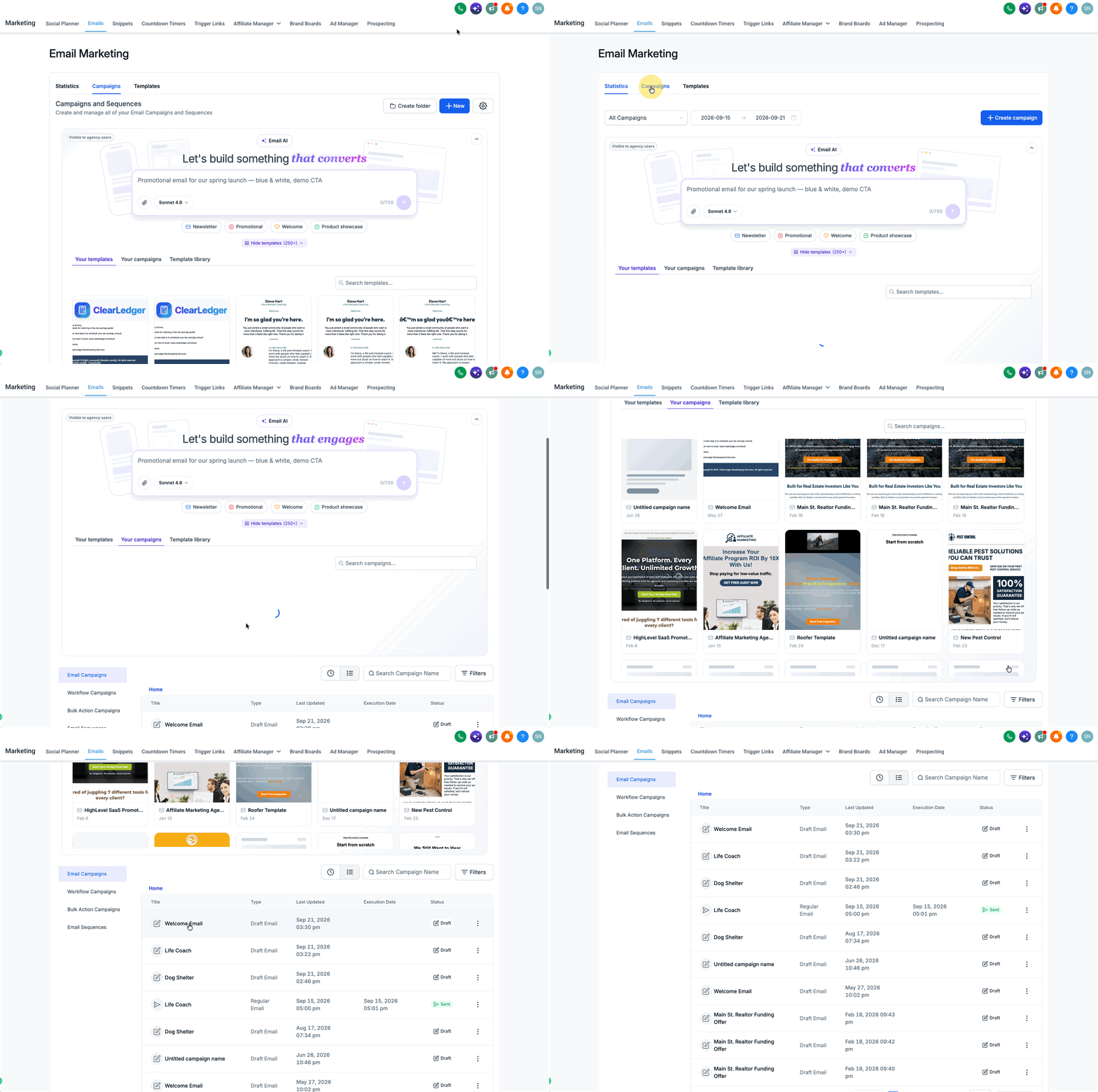
Step 1: Create an Email Campaign
- Go to Marketing → Email → Campaigns.
- Create a New Campaign or edit an existing campaign.
Step 2: Design the Email
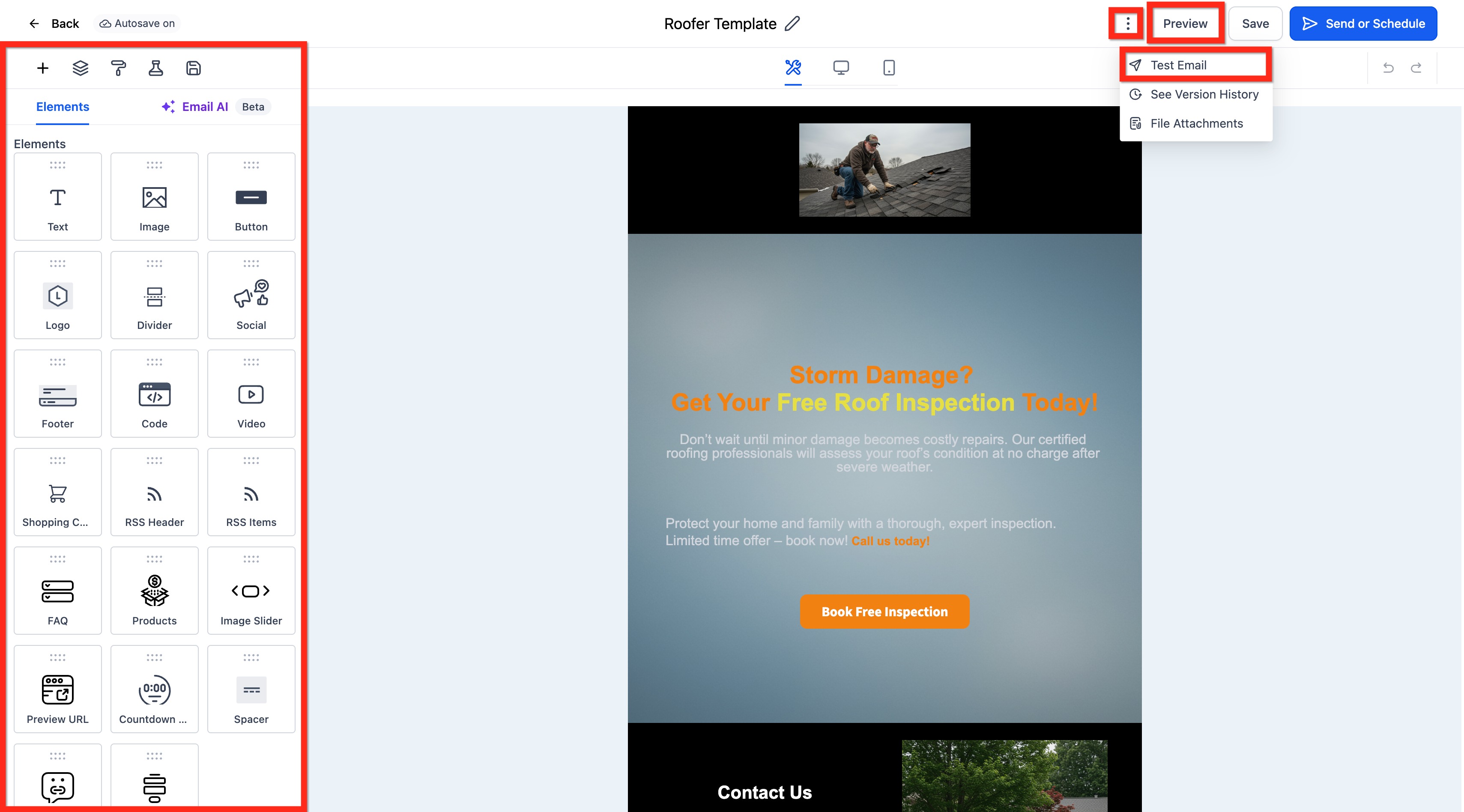
- Build a new email or select a template.
- Add the applicable content, images, and links.
- Use Preview and Test Email to review the email layout on desktop and mobile.
Step 3: Select a Delivery Option
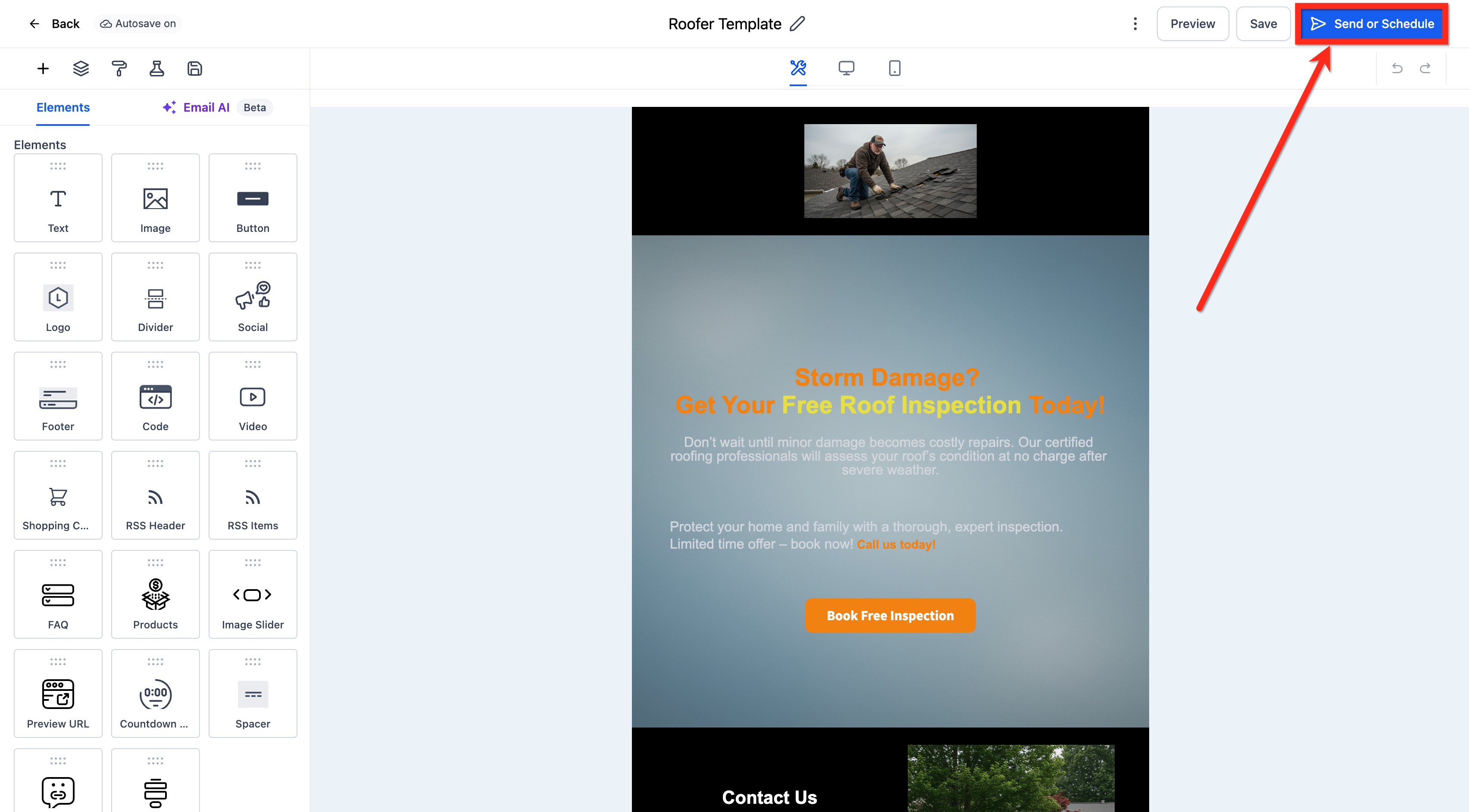
Click Send or Schedule after the campaign content is ready.
Optional: Attach Files to the Campaign
If you need to send documents or other supporting resources with the campaign, add them before completing the delivery configuration.
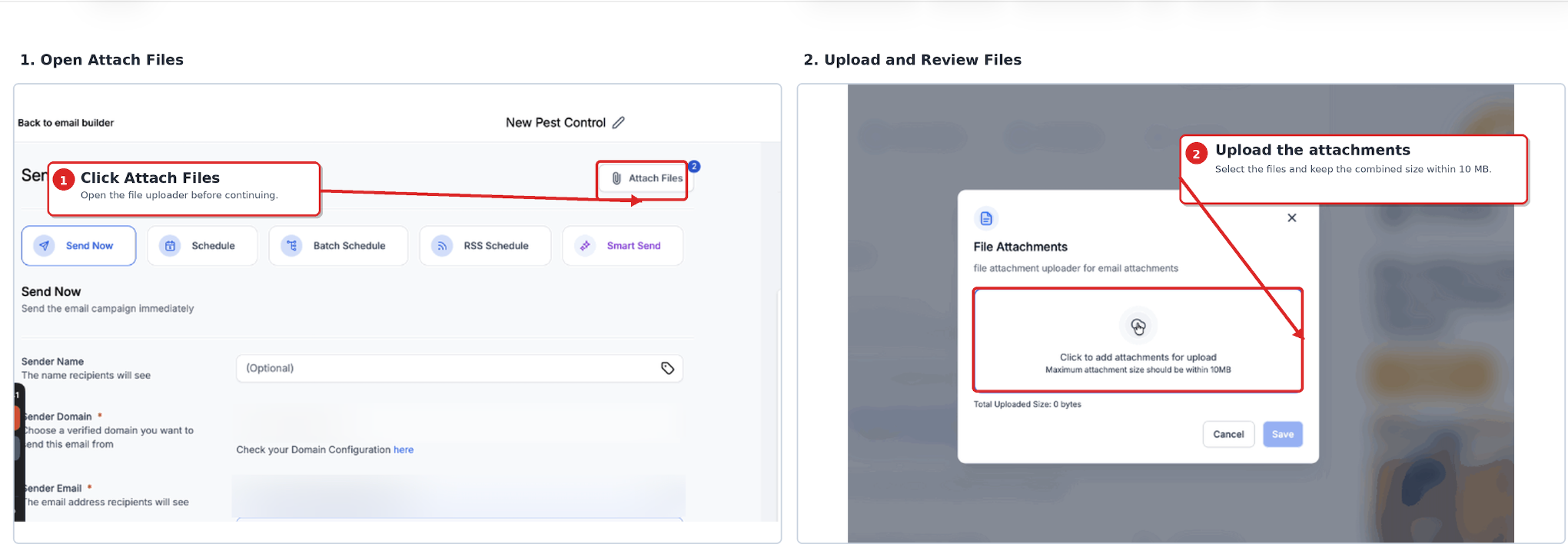
- On the Send or Schedule screen, click Attach Files.
- Upload or select the files you want to attach. You can add multiple files, provided their combined size does not exceed 10 MB.
- Confirm that the selected attachments are listed before sending or scheduling the campaign.
Note: Attachments are delivered as files through the recipient's email client and do not appear inside the campaign's designed email body.
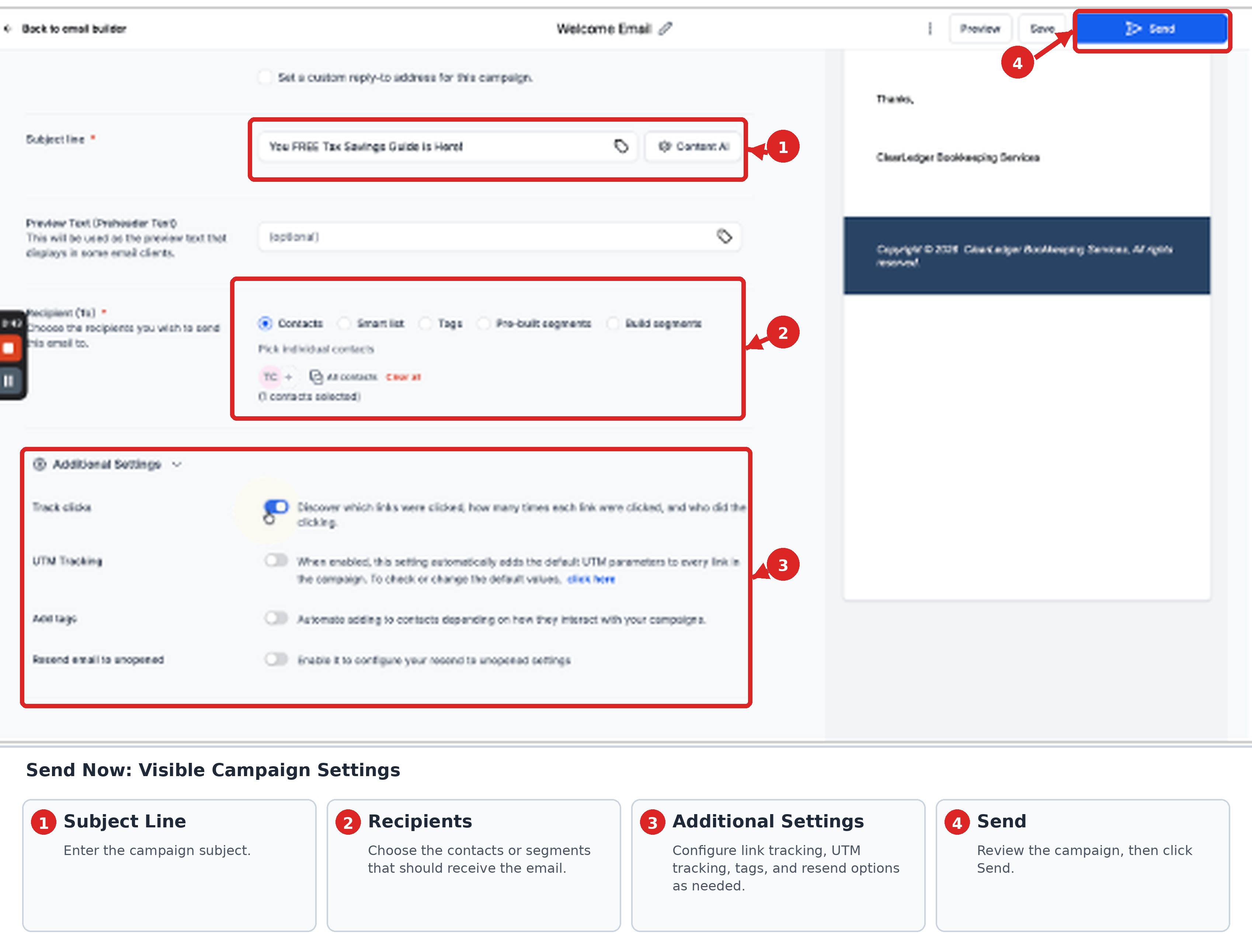
Send Now
Use Send Now when the campaign should be delivered immediately.
- Add the Sender Name.
- Review the Sender Domain or domain configuration.
- Add the Sender Email.
- Add the Subject Line.
- Add the applicable Recipients.
- Configure additional settings such as Link Tracking, UTM Tracking, and Tags as needed.
- Review the campaign details and click Send.
Schedule
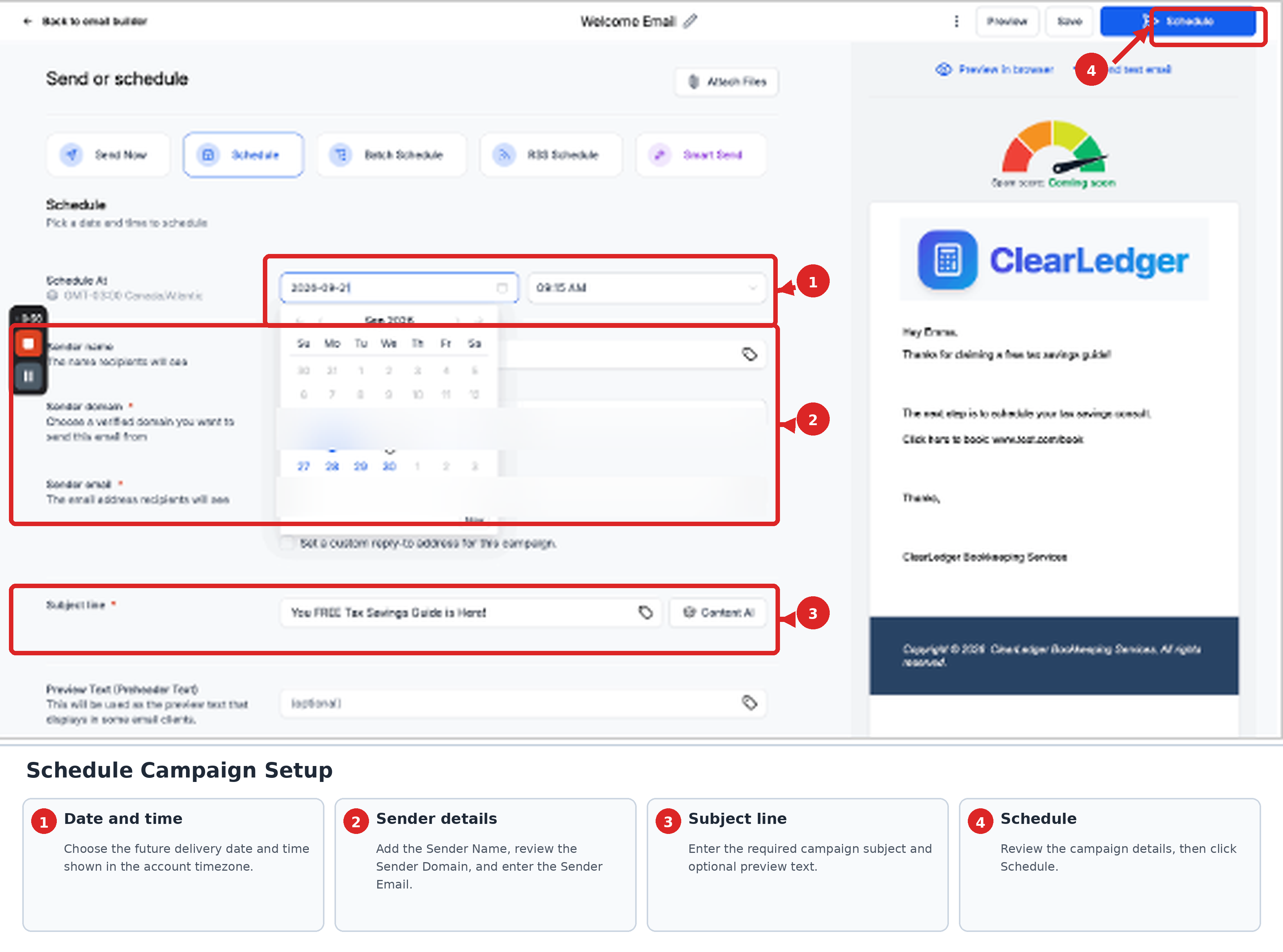
Use Schedule when the campaign should be delivered at a future date and time.
- Set the applicable Date and Time. The campaign is scheduled according to the account's configured timezone shown in the scheduling interface.
- Add the Sender Name.
- Review the Sender Domain or domain configuration.
- Add the Sender Email.
- Add the Subject Line.
- Add the applicable Recipients.
- Configure additional settings such as Link Tracking, UTM Tracking, and Tags as needed.
- Review the campaign details and click Schedule.
Frequently Asked Questions
Q: Can I reschedule an email campaign?
Yes. A scheduled campaign can be rescheduled according to the scheduling restrictions available in the campaign interface.
Q: What's the difference between Campaigns and Workflows for sending emails?
Campaigns are designed for one-time broadcasts. Workflows automate multi-step journeys and can send emails based on configured triggers and conditions.
Q: Can I attach multiple files to an email campaign?
Yes. On the Send or Schedule screen, select Attach Files. You can add multiple attachments as long as their combined size does not exceed 10 MB.
Q: Why don't attachments appear in the email body preview?
Attachments are separate from the designed email content. They are delivered as files that recipients can access through their email client rather than displayed inside the email body.
Q: Can I attach files when scheduling a campaign for later delivery?
Yes. Add the attachments from the Send or Schedule screen before completing the campaign's scheduling configuration.
Need Help?
If you experience issues creating, sending, or scheduling an email campaign, review your sender information, verified sending domain, recipients, and delivery settings.
If you have trouble adding attachments, confirm that the combined size of all files does not exceed 10 MB and that the selected attachments appear in the Attach Files area. If the issue persists, contact support for assistance.
When contacting support, include a description of the issue, any relevant error messages, the campaign settings involved, and the steps you have already tried.