TABLE OF CONTENTS
Overview
You can now build workflows that automatically run when a conversation's SLA becomes Due Soon, Overdue, or is manually dismissed. Instead of relying on users or managers to monitor SLA timers, you can define exactly what should happen when these events occur.
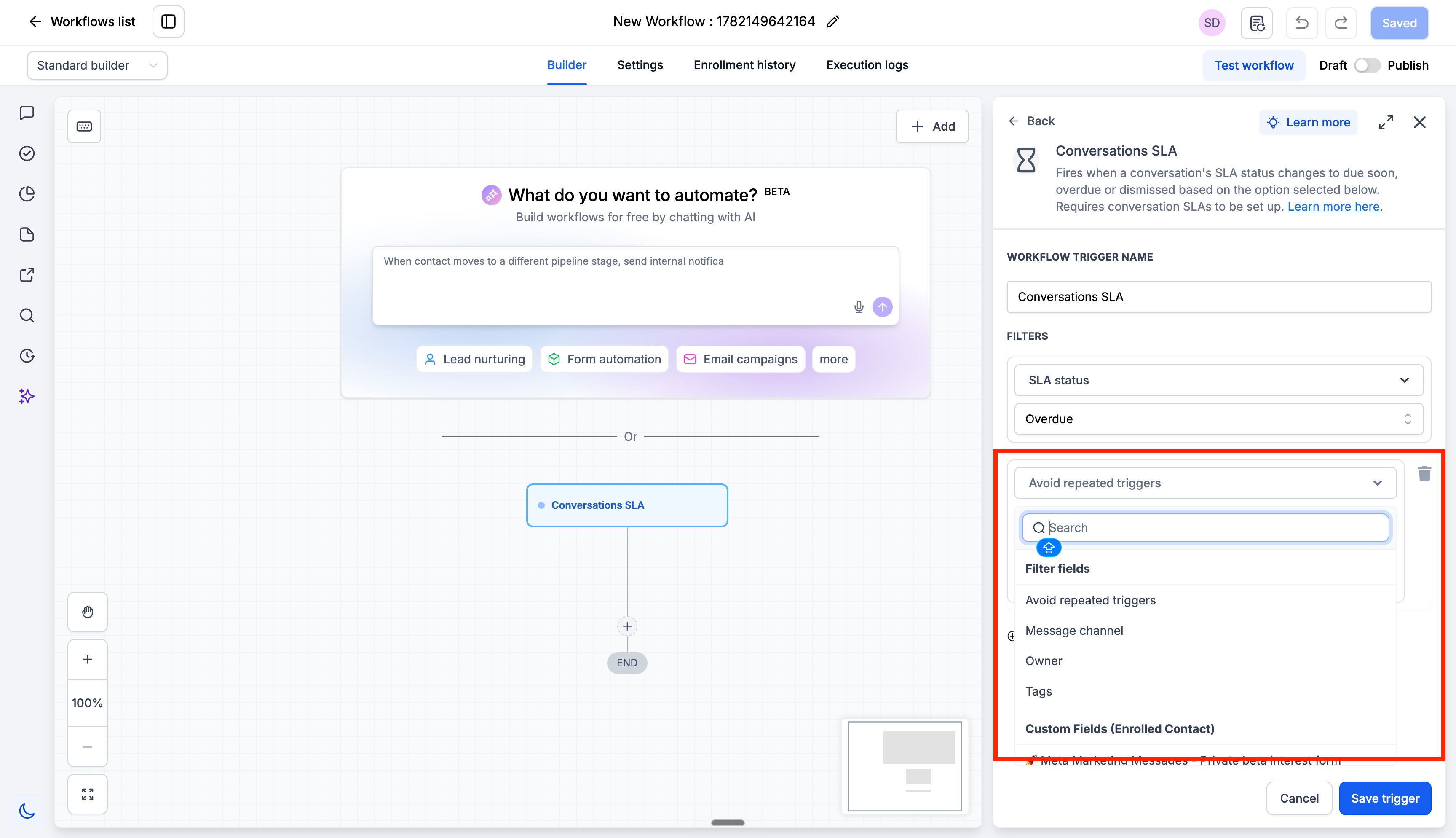
For example, you can: Notify a user when a conversation becomes overdue or Reassign contacts for escalation. To help prevent excessive notifications, we've also added an Avoid Repeated Triggers option. When enabled, the workflow will only run once per conversation within a 24-hour period, even if multiple messages from same contact cause additional SLA events.
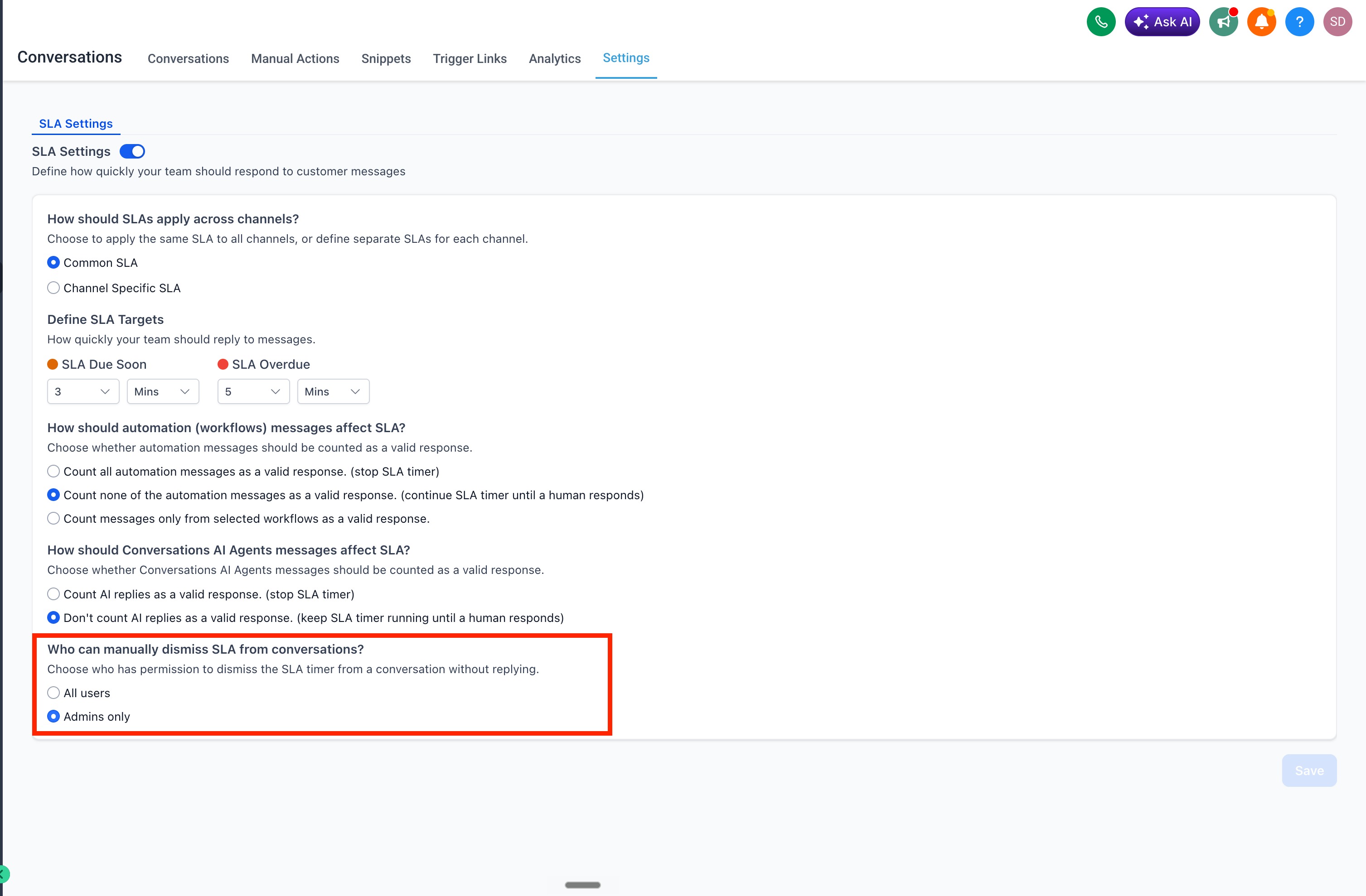
We've also introduced better controls around manual SLA removal. For conversations where no response is required - such as "Thank you", "Got it", or "Not interested" messages, users can manually dismiss the SLA without replying. Admins can choose whether this action is available to all users or restricted to admins only.
How to Use
To understand how SLAs work in Conversations and how to set them up, refer to this guide: here
Building Conversations SLA Workflows
- Go to Automation → Workflows, Create a new workflow and select Conversation SLA as the trigger. Choose the SLA event: Due Soon / Overdue / SLA dismissed
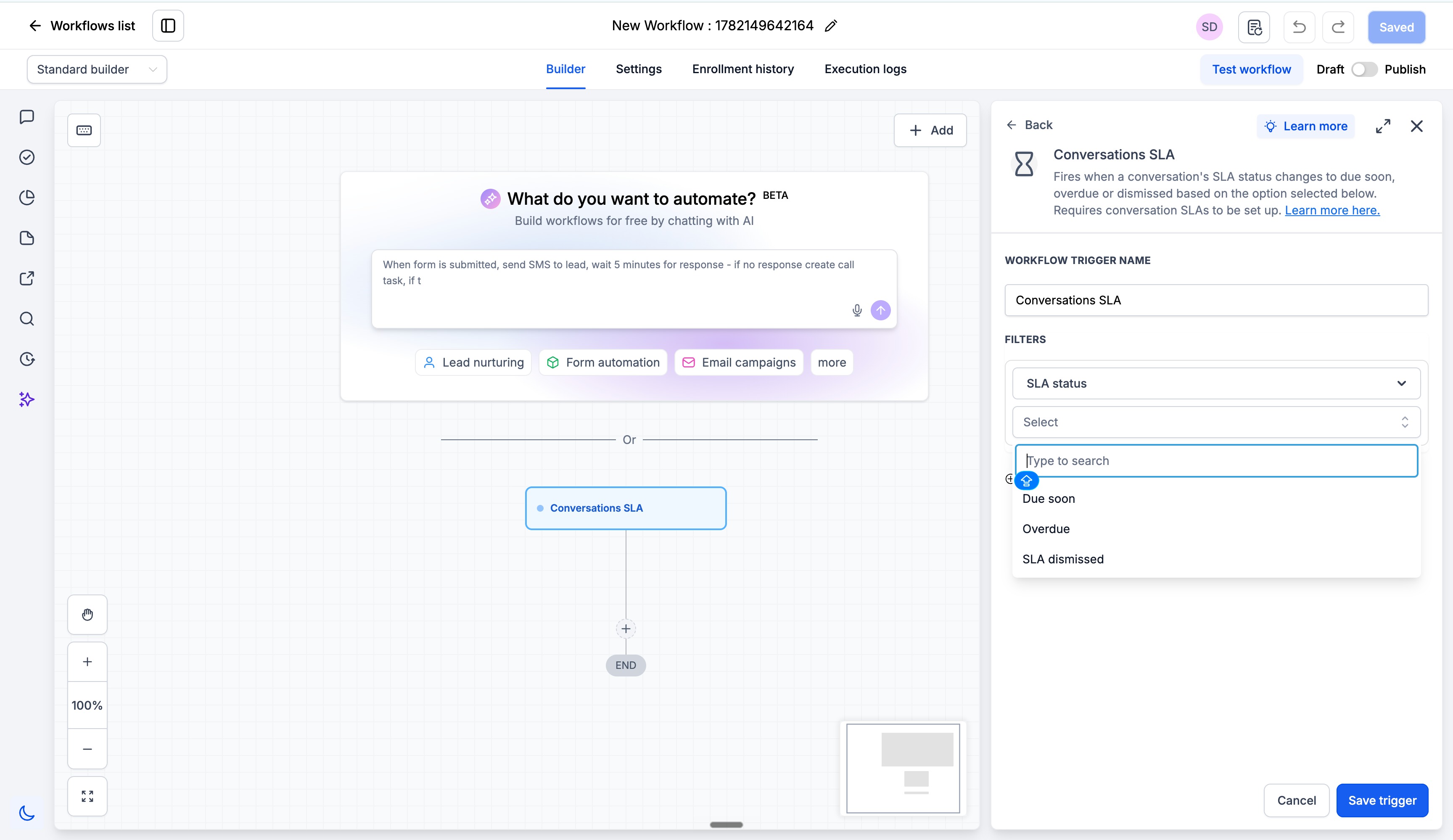
- You can also add optional filters such as: message channel, tags, owner, custom fields and define the actions you want the workflow to perform and publish it.
Configure Manual SLA Removal Permissions
- Go to Conversations Settings. Under Who can manually dismiss SLA from conversations?Select: All users or Admins only. Save your changes.
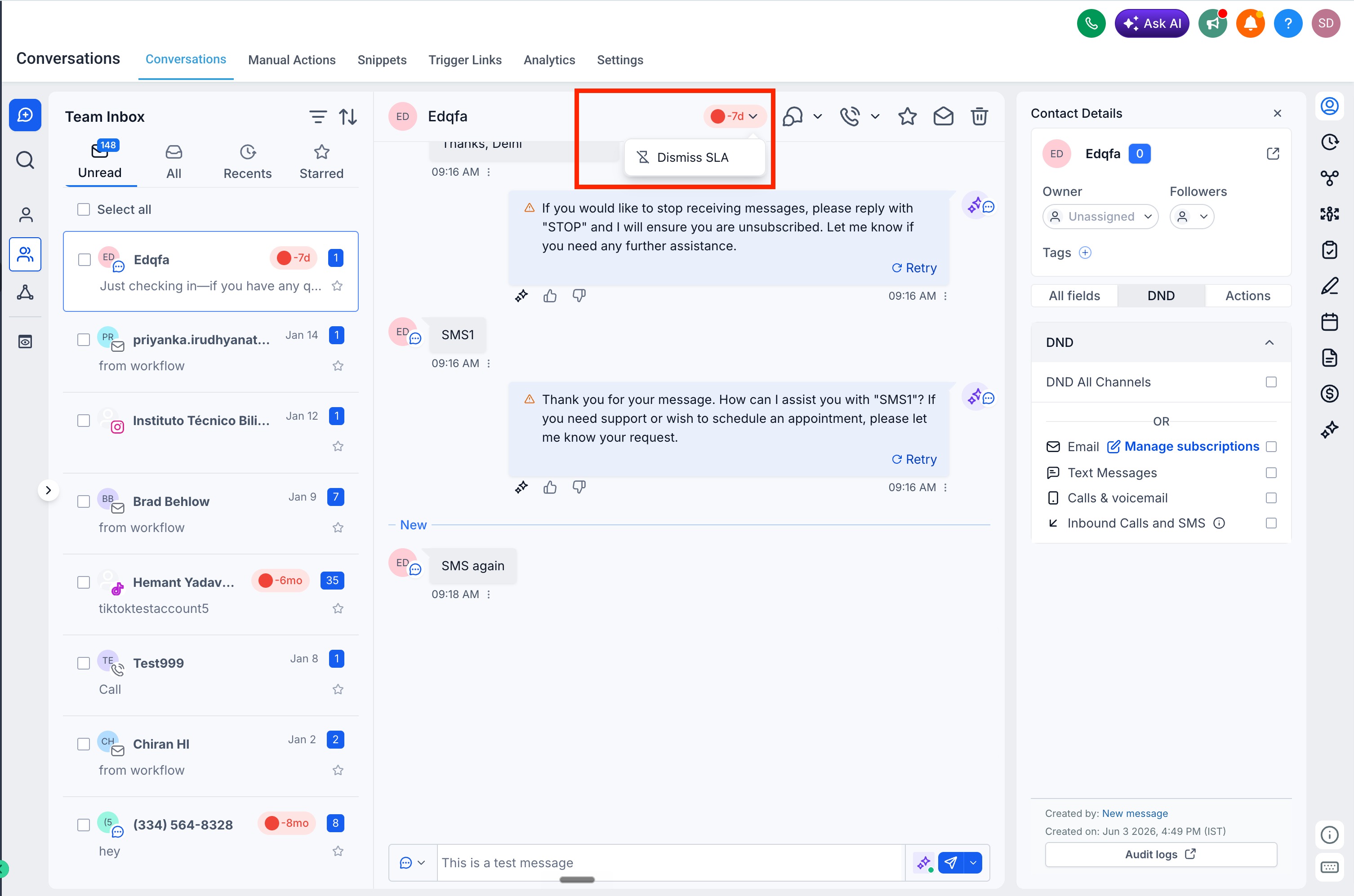
- Any user who has access to dismiss SLA can click on the SLA timer on center panel and dismiss the SLA
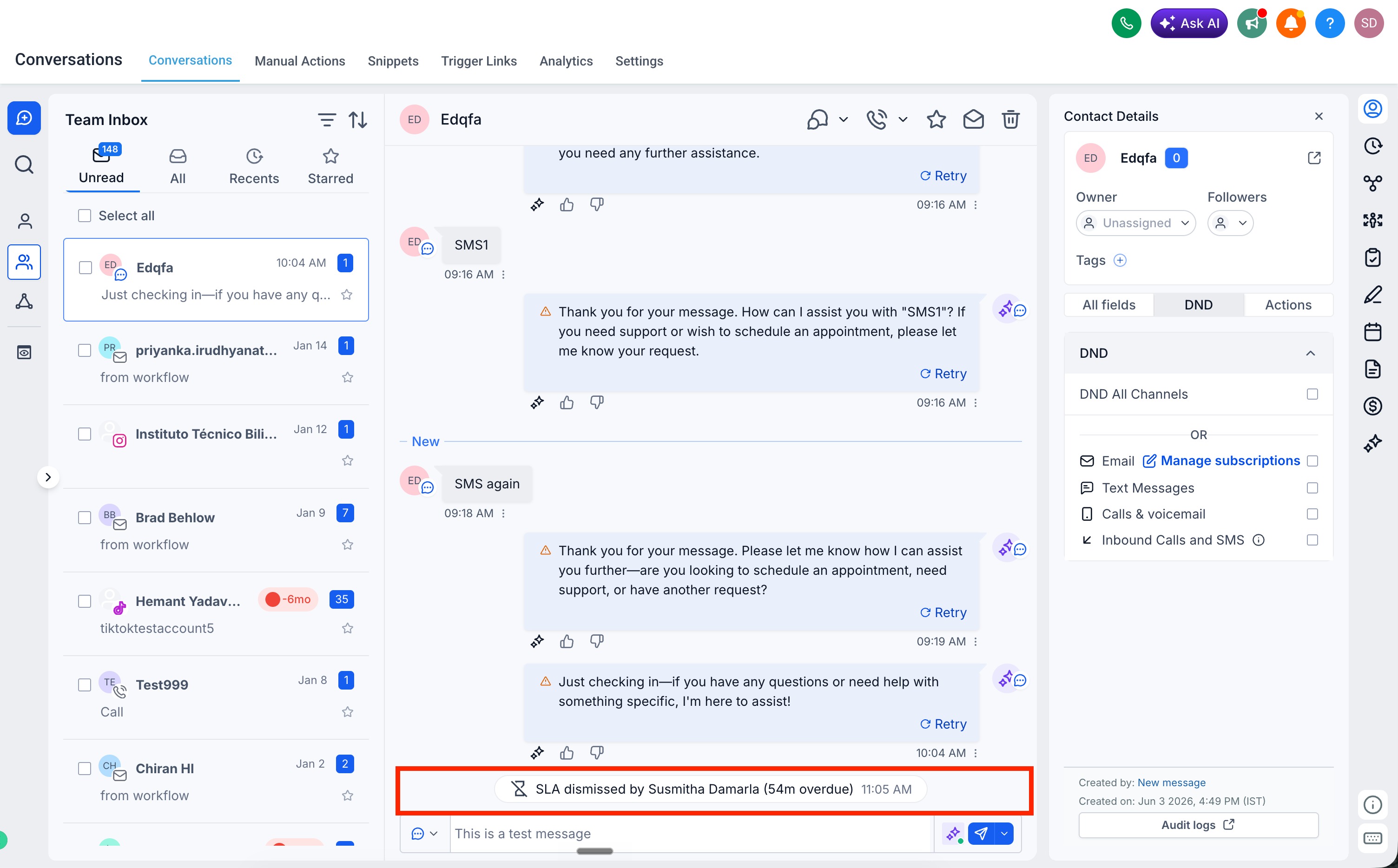
- When SLA is dismissed, a log is posted on the conversation showing which user dismissed the SLA and the SLA status at the time of dismissal.
Was this article helpful?
That’s Great!
Thank you for your feedback
Sorry! We couldn't be helpful
Thank you for your feedback
Feedback sent
We appreciate your effort and will try to fix the article