OVERVIEW
This setting lets you receive inbound calls only during your working hours. When it is on, any inbound call that reaches you outside your selected schedule will skip you and go to the phone number's backup handling (such as voicemail or Voice AI). It is useful if you do not want calls ringing your line after hours, on weekends, or during time off. This setting is off by default. Your call routing does not change until you turn it on.
WHO CAN USE IT
- You can manage this for yourself under Settings > My Profile.
- Admins and managers can manage it for team members under Settings > My Staff > Edit > User Availability.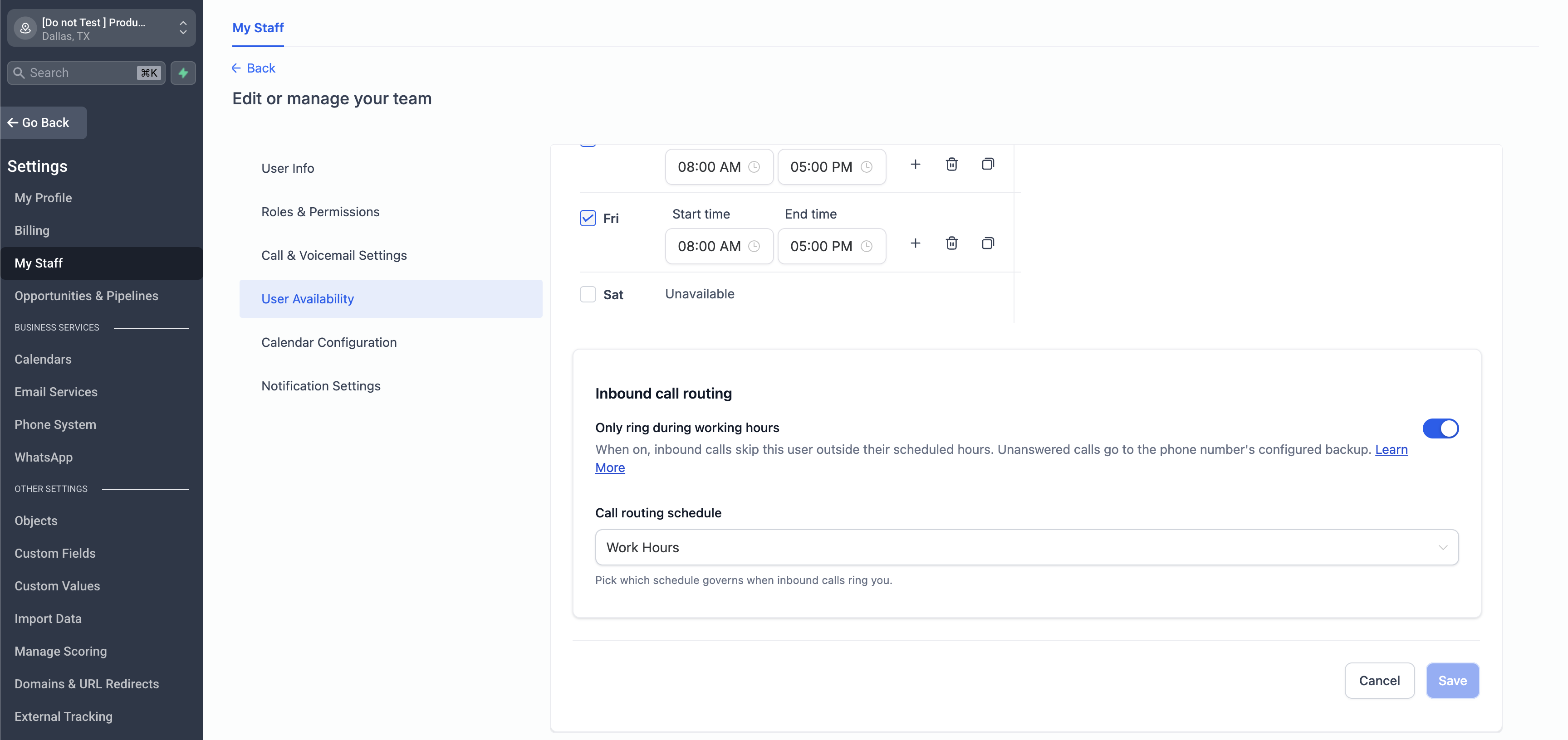
- Managing this setting requires the "Manage calendars" permission. If you do not see the option, your administrator may not have granted that permission to your role.
HOW TO TURN IT ON
- Go to Settings > My Profile (or My Staff and open the team member).
- Find the "Inbound call routing" card.
- Turn on "Only ring during working hours".
- Choose the schedule that defines your working hours from the dropdown. This is the schedule the system checks before ringing you.
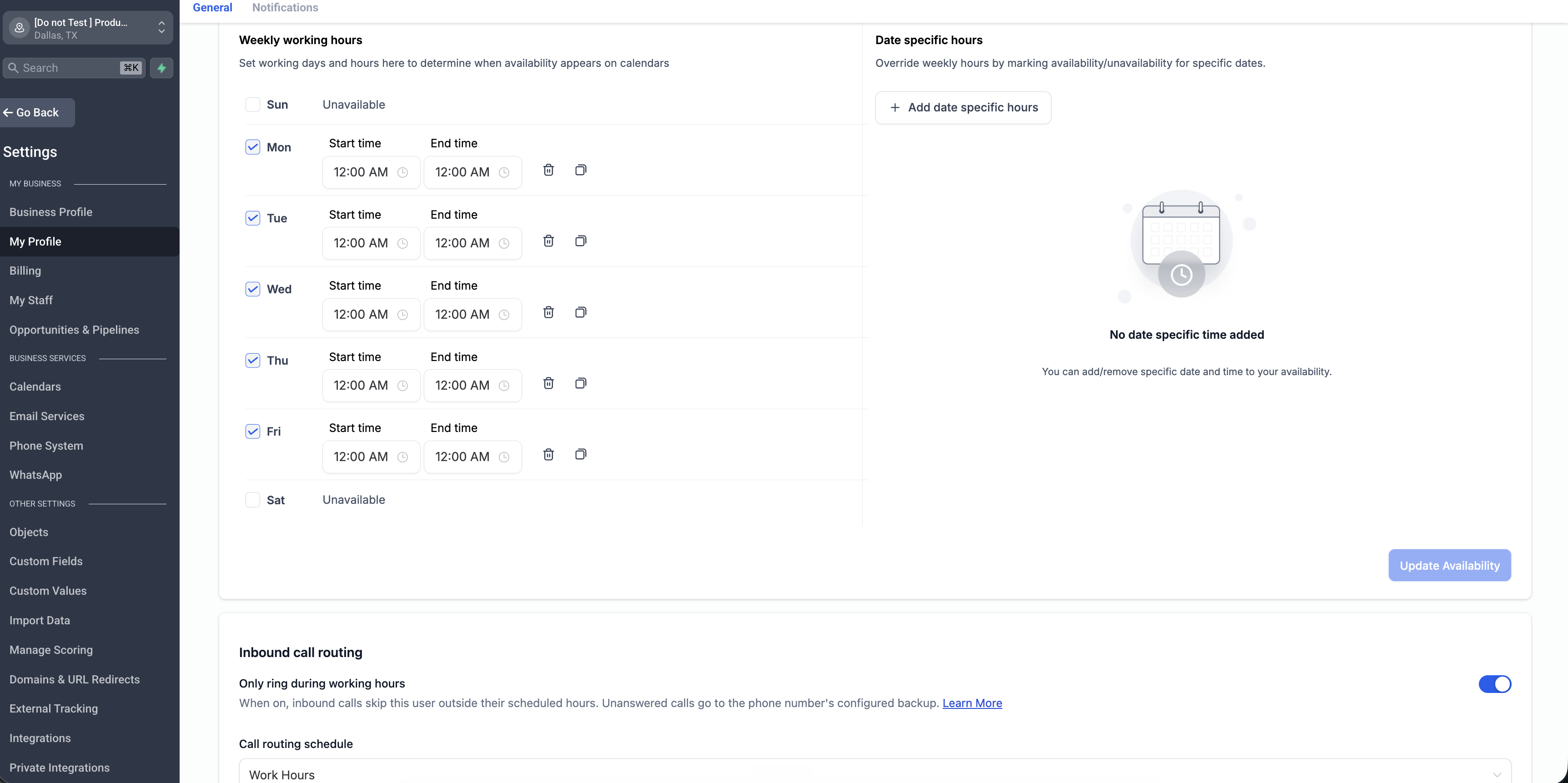
Your choice saves automatically.
WHAT HAPPENS TO CALLS OUTSIDE YOUR HOURS
- You are assigned to the number or contact: the call skips you and goes to that phone number's existing backup (voicemail or Voice AI).
- Ring all is used: only teammates who are outside their hours are skipped. Everyone still within hours rings as normal. If everyone is outside hours, the call goes to the phone number's backup.
- Call menu (IVR): when a connect step is set up to ring you and you are outside your hours, you are skipped while the other people and numbers on that step still ring. If you were the only person set up to receive that call, the call connects to no one and the call flow continues.
During your working hours, nothing changes. Calls ring you exactly as they do today.
USING DATE-SPECIFIC HOURS FOR HOLIDAYS AND TIME OFF
The schedule that powers this feature supports date-specific hours. A date-specific entry overrides your normal weekly hours for a single date, so you can take yourself off inbound calls for a holiday or a day off without changing your regular weekly schedule.
To mark a day as off:
1. Open the schedule you selected in the "Inbound call routing" card.
2. Add a date-specific entry for the date you want to be unavailable.
3. Set that date to have no available hours.
4. Save.
On that date, you are treated as outside working hours for the whole day, so inbound calls skip you and go to the phone number's backup. Your normal weekly hours are unchanged and resume automatically the next day.
Good to know:
- A date-specific entry always takes priority over your normal weekly hours for that date, so it works even if the holiday falls on a normal working day.
- It works the same whether you set it for yourself in My Profile or an admin sets it for a team member in My Staff.
- To take a whole team off calls for a company holiday, add the date-specific day off to each member's schedule and make sure their toggle is on.
FOR ADMINS: CONTROL WHO CAN CHANGE THIS
This setting is tied to the "Manage calendars" permission. If you do not want a staff member changing their own call availability, remove the "Manage calendars" permission from their role under Settings > My Staff > Roles and Permissions. When that permission is off, the "Inbound call routing" card is hidden for that user and any attempt to change the setting is blocked. This lets admins keep control of after-hours call routing across the team.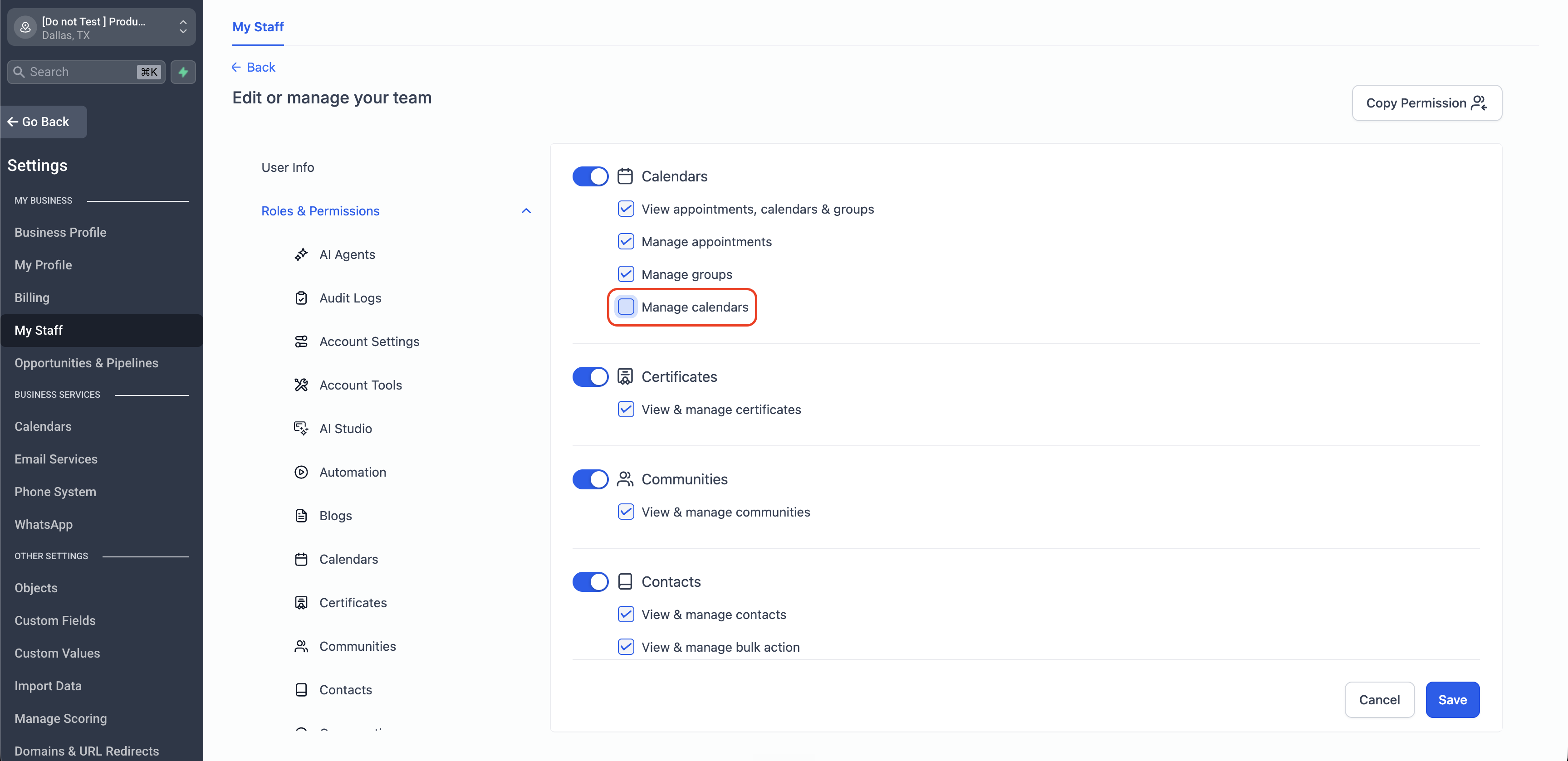
WHAT ABOUT MY FORWARDING NUMBER?
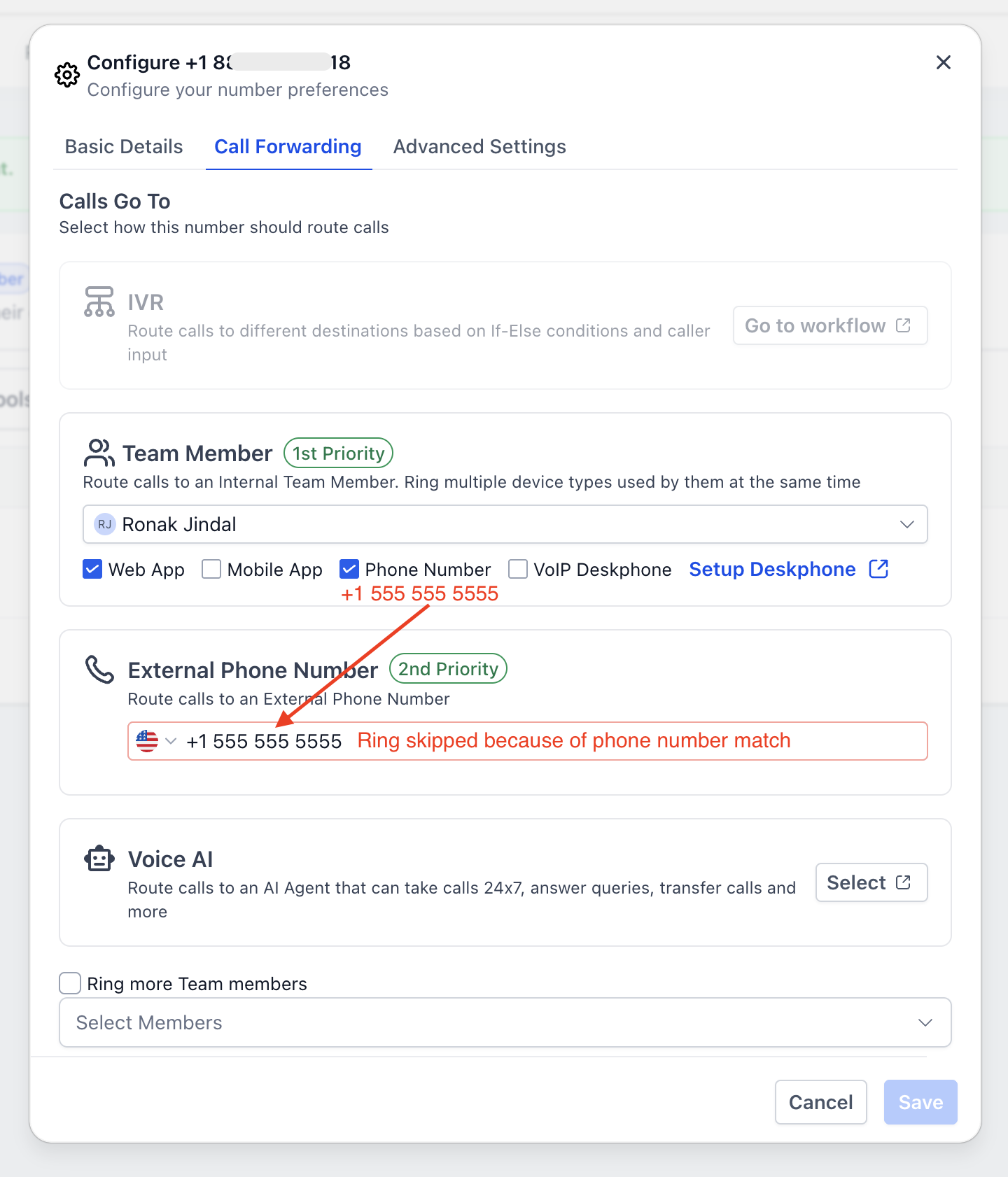
If your own phone is also set as the forwarding number on a phone number you are assigned to (or as the business number), you do not need to do anything. When you are outside your working hours, that forwarding number is automatically skipped along with you, so the call goes to the phone number's backup instead of ringing you. Your schedule is respected either way.
FREQUENTLY ASKED QUESTIONS
Will this change anything if I leave it off?
No. The setting is off by default and your call routing stays exactly as it is until you turn it on.
Which schedule does it use?
The schedule you pick in the dropdown. You can change it at any time.
How do I stop calls on a holiday?
Add a date-specific entry with no hours for that date to your selected schedule. See "Using date-specific hours for holidays and time off" above.
Does it work for transferred calls?
Not yet. This release covers inbound calls to assigned users, ring all, and call menu (IVR) steps. Transferred calls are planned for a future update.
Can I send after-hours calls to a specific teammate or my own voicemail?
Not in this version. Calls outside your hours follow the phone number's existing backup.
I turned it on but calls still reach me after hours. Why?
Check that your selected schedule is correct and that the current time really falls outside it (remember the schedule uses its own timezone). Also confirm the toggle is on for the right profile. If you are testing with a date-specific holiday, make sure that date has no available hours.
Was this article helpful?
That’s Great!
Thank you for your feedback
Sorry! We couldn't be helpful
Thank you for your feedback
Feedback sent
We appreciate your effort and will try to fix the article