Resend to Unopened helps you follow up with contacts who did not open an RSS or Batch Scheduled email campaign. You can schedule the follow-up from a sent campaign and review or change its subject line. You can also plan resends during campaign creation where the option is available and manage them before delivery. This guide explains how to set up, review, and troubleshoot resends without sending another email to your entire audience.
What Is Resend to Unopened for RSS and Batch Scheduled Emails?
Resend to Unopened schedules a follow-up using the original campaign's email content for contacts whose first message was not recorded as opened. The feature supports eligible RSS Schedule and Batch Schedule campaigns, so you can reach non-openers without building a new email or contacting the entire recipient list again.
Key Benefits of Resend to Unopened
A focused resend gives the original message another opportunity to be noticed while letting you control the timing and subject line.
- Targeted Follow-Up: Send again to contacts without a recorded open instead of repeating the campaign to everyone.
- Flexible Timing: Choose a follow-up time after the original send.
- Subject Line Control: Review or change the resend subject line without rebuilding the email.
- Resend Visibility: Check pending resends and use available controls to adjust or cancel them.
Supported Campaigns and Recipient Selection
The original email must have been sent before you can start a resend from its campaign action menu. The resend targets recipients based on the open activity recorded for that original email.
- RSS Schedule: Supported for eligible sent RSS email campaigns.
- Batch Schedule: Supported for eligible sent campaigns originally delivered using Batch Schedule.
- Recipient Selection: The follow-up is queued for contacts who did not open the original email according to available tracking.
Note: Resending an original Batch Scheduled campaign is not the same as sending the follow-up itself in batches or resending several campaigns at once. Those separate capabilities are not established by this feature's documentation.
How to Set Up Resend to Unopened
You can schedule a follow-up after an eligible campaign has been sent. Where the resend setting is available during campaign creation, you can also configure the follow-up in advance.
Option 1: Resend from a Sent RSS or Batch Scheduled Campaign
Use this option when the original campaign has already been sent. The campaign action menu provides access to the resend settings for eligible emails.
- Go to Marketing → Emails → Campaigns.
- Find the eligible sent RSS or Batch Scheduled campaign.
- Open the campaign's three-dot menu (⋮) and select Resend email to Unopened.
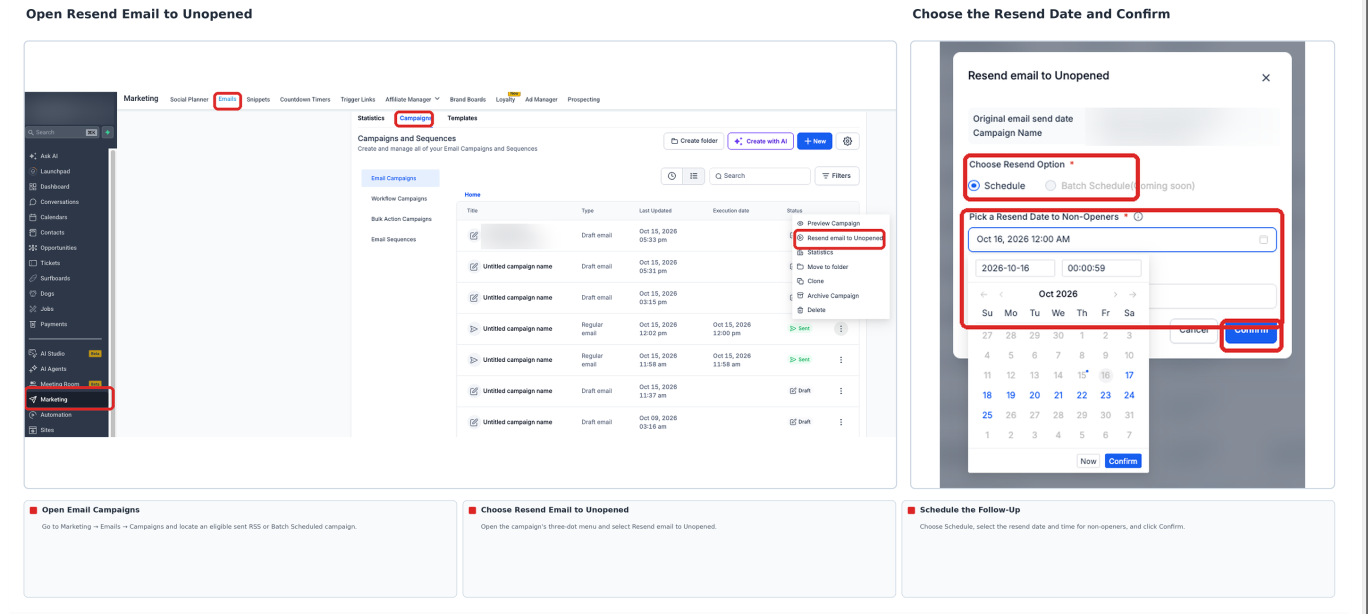
Example: Resend email to Unopened in the options menu of a sent campaign.
- Review the original campaign details and choose the resend date and time.
- Review the subject line and change it if you want to try a different subject.
- Click Confirm in the resend dialog to schedule the follow-up.
Option 2: Plan a Resend During Campaign Creation
When the resend option is available during campaign creation, you can configure a follow-up before sending the original email. This allows you to prepare the resend timing and subject line in advance.
- Go to Marketing → Emails → Campaigns and create a new email campaign.
- Complete the email design and open its Send or Schedule settings.
- If Resend email to unopened is available for the selected sending settings, enable it.
- Set the resend delay and review or change the subject line.
- Finish sending or scheduling the original campaign.
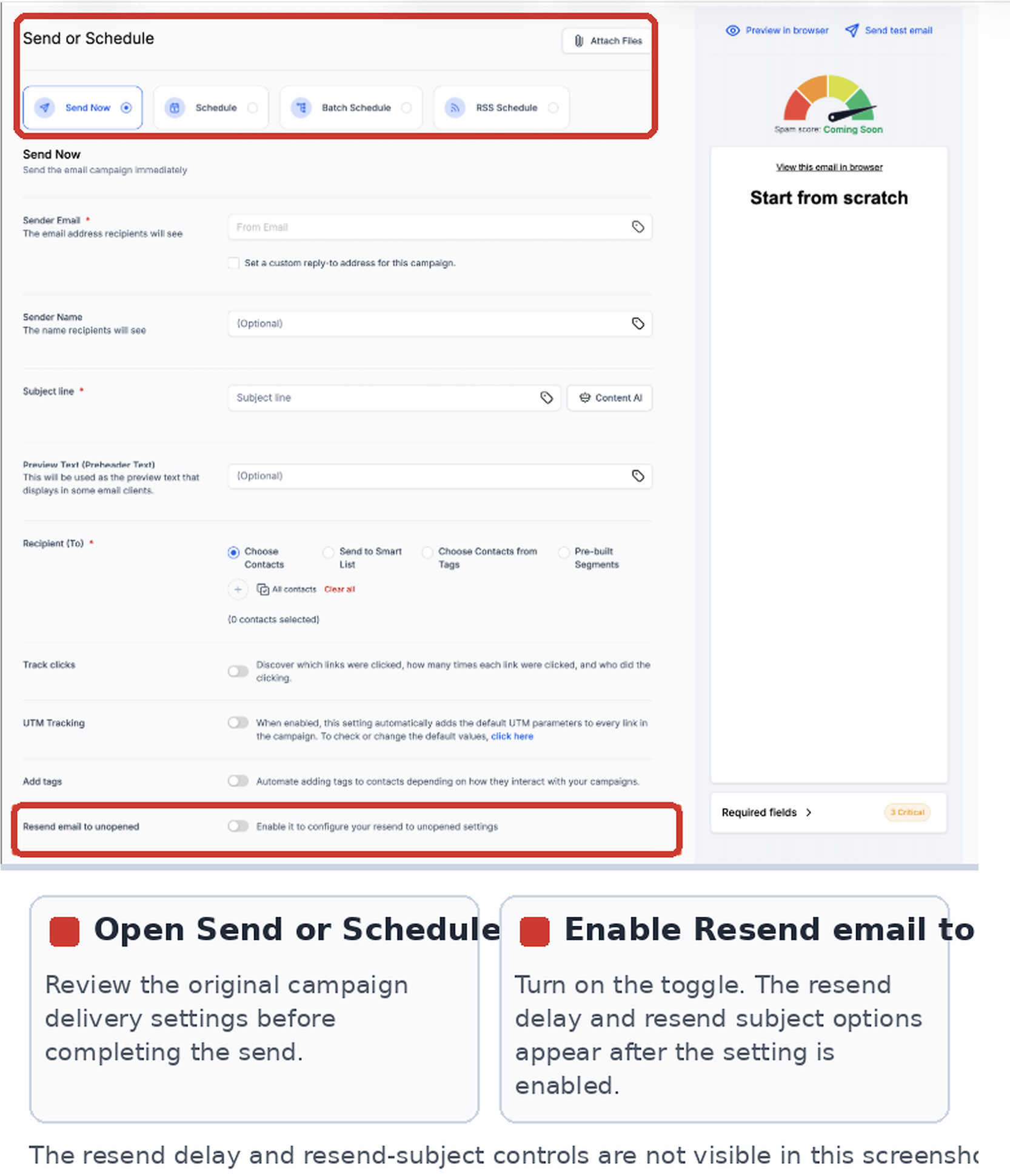
The screenshot shows where to find the resend setting. Resend-delay and subject-line controls appear after the setting is enabled, where available.
How to Review and Manage a Pending Resend
Checking a pending resend before it sends helps prevent an unwanted follow-up. You can also review the campaign's performance after delivery.
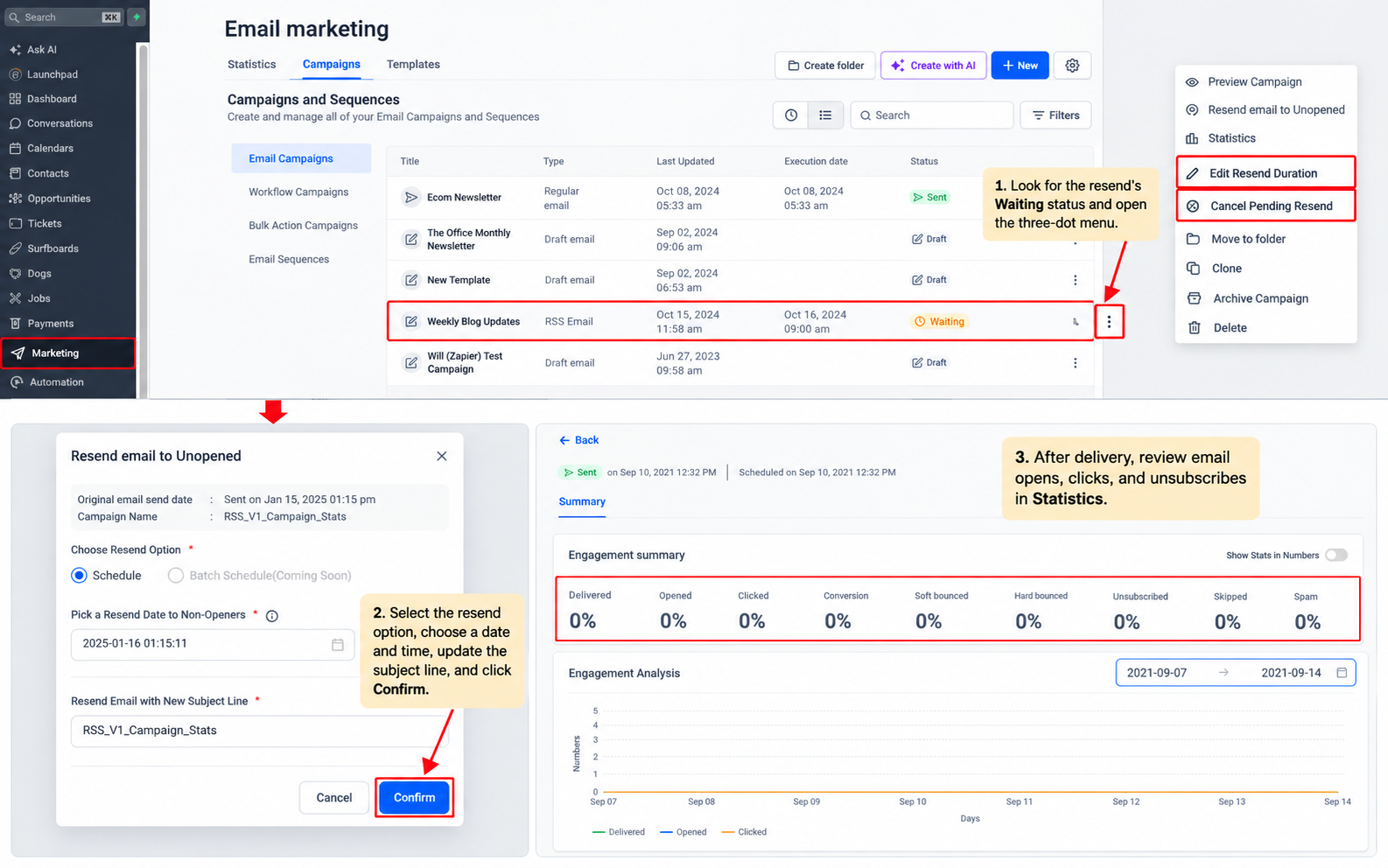
- Go to Marketing → Emails → Campaigns and look for the resend's Waiting status.
- Open its three-dot menu (⋮) to review the available controls. Select Edit Resend Duration to change the timing or Cancel Pending Resend to stop the follow-up.
- After delivery, open the sent campaign's three-dot menu (⋮) and select Statistics. Review email opens, clicks, and unsubscribes to evaluate the follow-up.
Important: If the original email campaign is canceled before it sends, its resend will not be sent. Open statistics are tracking signals, not guaranteed proof that someone read or did not read an email.
Best Practices for Resending
Use follow-ups selectively so recipients have time to open the original email and are not overwhelmed by repeated messages.
- Allow Time: Give recipients a reasonable opportunity to open the original email before resending.
- Refresh the Subject: Consider a different, relevant subject line rather than repeating the same wording.
- Monitor Results: Check opens, clicks, and unsubscribes before deciding whether a similar resend is appropriate for future campaigns.
Frequently Asked Questions
Q: Why can't I see Resend email to Unopened in the campaign menu?
Check that you're viewing an eligible campaign whose original email has already been sent. Available actions depend on the campaign's type and status.
Q: Does Batch Schedule support mean I can resend multiple campaigns in one bulk action?
This feature supports resending an eligible campaign that was originally delivered using Batch Schedule. It does not establish a bulk action for resending several campaigns at once.
Q: Can I use this feature for contacts who clicked but did not purchase?
No. Resend to Unopened is based on recorded email opens. For follow-ups based on clicks or other behavior, use an appropriate automation workflow.
Q: What happens if the original scheduled campaign is canceled?
If the original campaign is canceled before sending, the resend will not go out.
Q: Can a recipient appear to be a non-opener even if they read the email?
Yes. Open tracking depends on the email client, sending provider, and tracking configuration. Treat unopened status as a recorded engagement signal, not absolute proof that an email was unread.
Need Help?
If you cannot schedule or manage a resend, review the original campaign's status, resend settings, and recorded engagement before making changes.
- Resend Option Is Missing: Confirm that the original campaign has been sent and is eligible for Resend to Unopened.
- Advance Resend Setting Is Unavailable: Check the available options under Send or Schedule. If the setting is unavailable, review the resend action after the original campaign has been sent.
- Cannot Find a Pending Resend: Look for the Waiting status in the campaign list and review the available actions in the three-dot menu.
- Need to Change the Follow-Up Time: Open the pending resend's three-dot menu and select Edit Resend Duration.
- Need to Stop a Follow-Up: Open the pending resend's three-dot menu and select Cancel Pending Resend.
- Unexpected Recipient Results: Remember that the resend uses recorded open activity. Open tracking may not perfectly reflect whether every recipient read the original message.
- Reviewing Resend Performance: Open Statistics for the sent campaign and review the available engagement metrics.
If the issue continues, contact support for assistance. Include the affected campaign, original sending method, resend settings, scheduled resend time, and any relevant error messages.